

Create Circus Journal · E-Commerce Setup
Shopify Compare at Price: What It Means and How to Use It in 2026
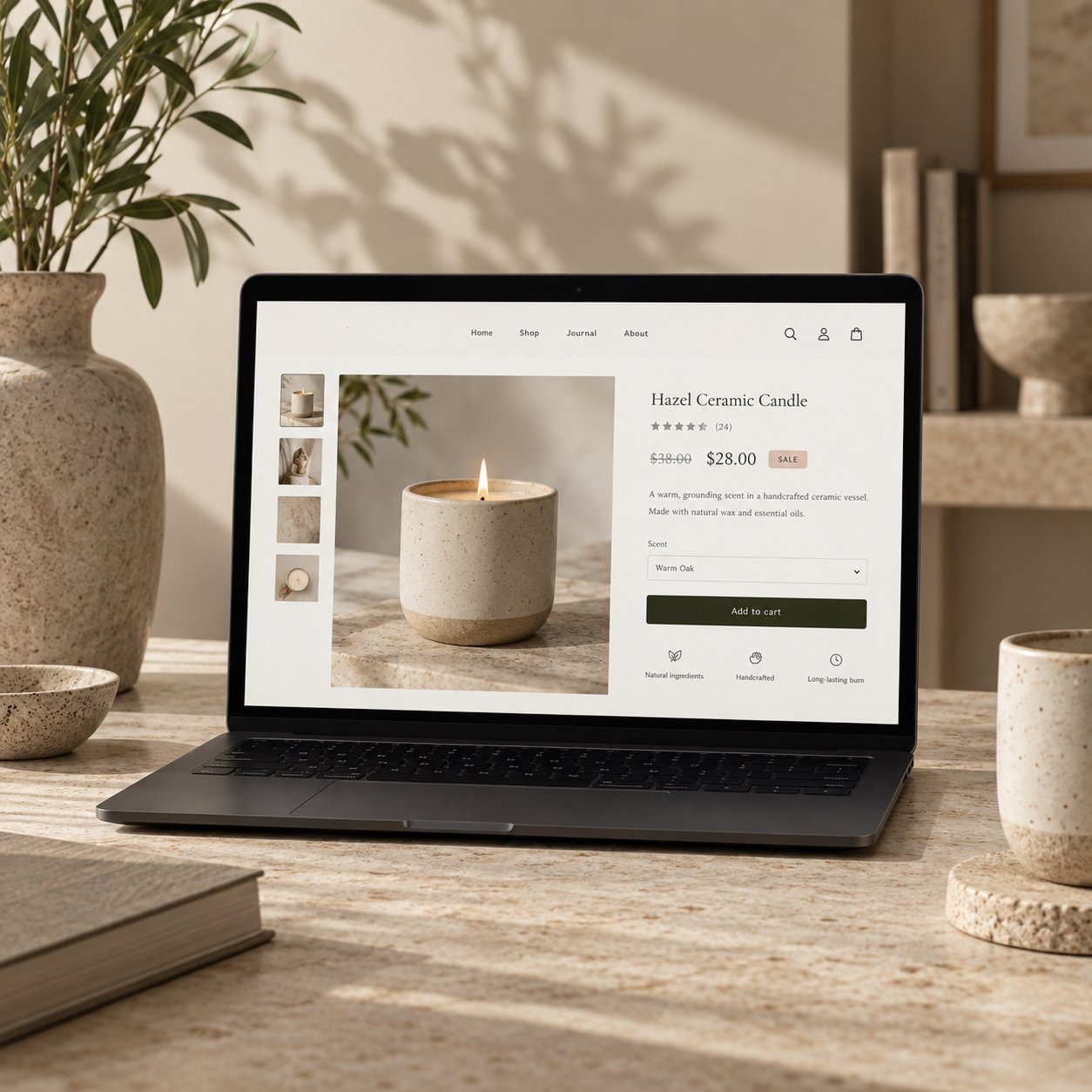
If you have ever opened a Shopify product and seen one price crossed out beside a lower price, you have already seen Compare at Price in action.
It is one of Shopify’s simplest pricing features, but it is also surprisingly easy to configure incorrectly.
At its most basic, Shopify uses two values:
Price is what the customer currently pays.
Compare-at price is the original price shown alongside it when the product has been reduced.
If a product previously sold for $100 and is now on sale for $75, you would normally enter $75 as the Price and $100 as the Compare-at price.
Your theme can then display the original $100 price crossed out beside the current $75 price.
That sounds straightforward. But variants, collection pages, Markets, themes, bulk edits and regional pricing rules can make Compare at Price behave differently from what merchants expect.
This guide explains how Shopify Compare at Price works in 2026, how to set it correctly and what to check when your sale pricing does not appear as expected.
What does Compare at Price mean on Shopify?
Shopify defines Compare-at price as the original price of a product when its active selling price has been reduced.
The Compare-at price therefore gives the customer context.
Instead of seeing only:
$75
they might see:
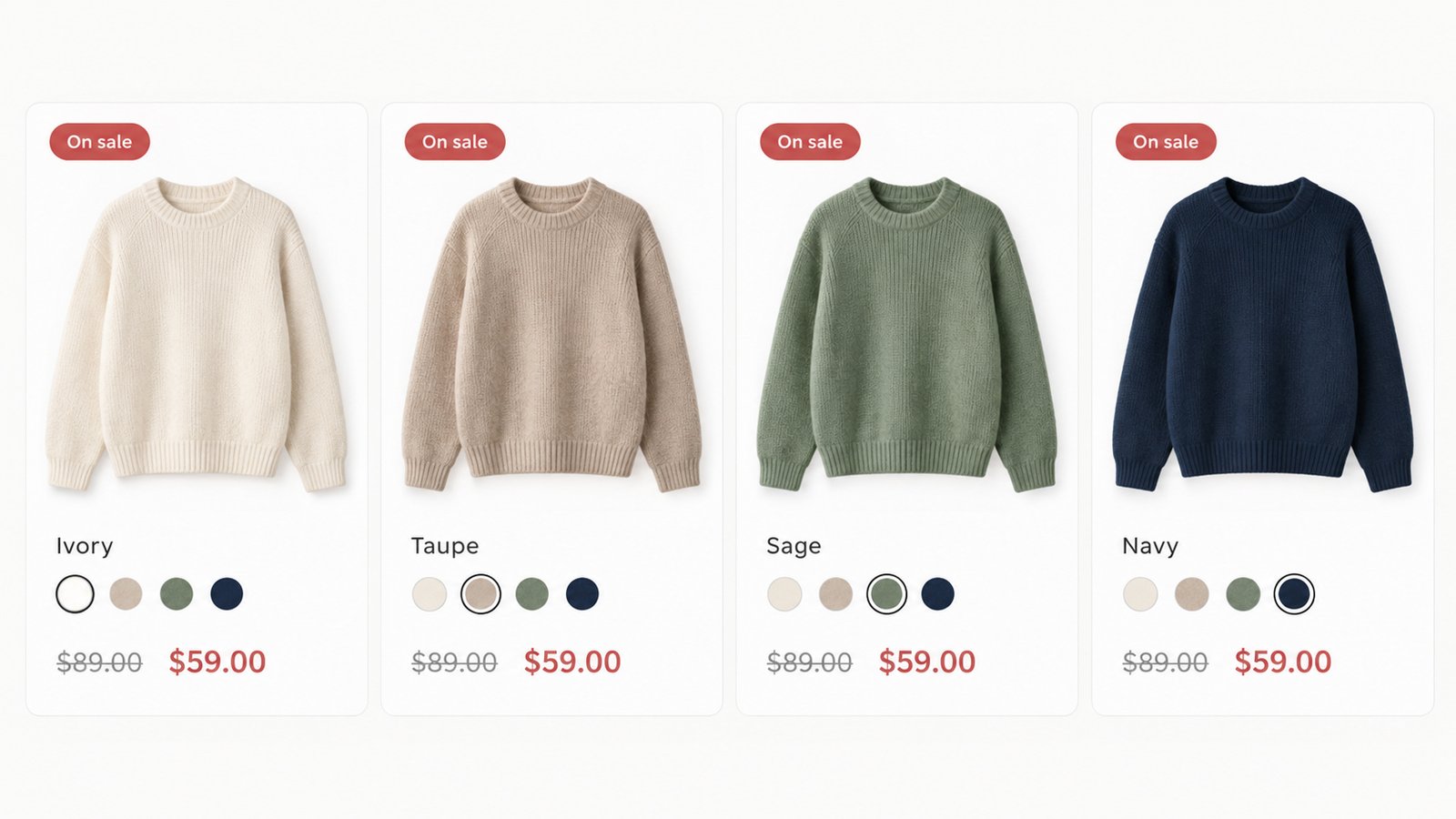
$100 $75
The exact styling depends on the Shopify theme.
Some themes use a strikethrough.
Some show a Sale badge.
Some calculate the percentage or amount saved.
Others keep the presentation deliberately subtle.
The underlying Shopify logic is the same: the Compare-at price represents the higher reference price, while Price represents the amount being charged now.
Price vs Compare-at price
The easiest mistake is reversing the two fields.
If the original product price was $120 and the new sale price is $90:
Price = $90
Compare-at price = $120
The Compare-at price needs to be higher than the active Price for Shopify to treat the product as being on sale.
If the Compare-at price is lower than or equal to the Price, the sale presentation will not work correctly.
A useful rule:
The amount the customer actually pays goes in Price. The previous or reference price goes in Compare-at price.
How to set Compare at Price in Shopify
For an individual product, the current Shopify process is simple.
Step 1: Open the product
From your Shopify admin, go to Products and open the product you want to put on sale.
Step 2: Open the pricing controls
In the pricing area, select Compare at if the Compare-at price field is not already visible.
Step 3: Enter the original price
Enter the original or reference price in the Compare-at price field.
Step 4: Enter the new selling price
Enter the amount the customer should now pay in the regular Price field.
Step 5: Save the product
Save the changes and check the storefront rather than assuming the theme is presenting the sale exactly as expected.
Shopify supports the same pricing structure for individual variants.
How Compare at Price works with variants
This is where a large amount of Shopify pricing confusion begins.
Imagine a jumper available in Small, Medium and Large.
Each size is a product variant, and each variant can have its own Price and Compare-at price.
That gives merchants flexibility, but it can also create inconsistent sale states.
For example:
Small might have a Price of $70 and Compare-at price of $100.
Medium might have a Price of $70 and Compare-at price of $100.
Large might have a Price of $70 but an empty Compare-at price.
On the product page, Shopify can show the correct pricing once a specific variant is selected.
On a collection page, however, Shopify has to represent the product more generally.
Inconsistent Compare-at pricing across variants can therefore prevent the collection card from appearing as a sale product.
If your Compare-at price appears correctly on the product page but not on collection pages, variant consistency is one of the first things we would check.
Why $0 is not the same as leaving Compare at Price empty
This is an important detail because older Shopify tutorials often recommend setting Compare-at price to zero when a sale ends.
We would not recommend that.
Shopify distinguishes between a Compare-at price of $0.00 and a Compare-at field that is completely empty.
That difference can affect product conditions, collections and sale logic.
If a product should no longer have a Compare-at price, clear the field rather than automatically entering zero.
This is one of the areas where older Shopify content can cause unnecessary storefront problems.
How to edit Compare at Price in bulk
Updating products individually becomes impractical once a store has a large catalogue.
Shopify’s bulk editor allows merchants to change pricing across multiple products and variants from a table-style interface.
Select the products or variants you want to update and open the bulk editor.
Then add the Price and Compare-at price columns if they are not already visible.
You can edit the values directly in the table and save them together.
This is useful for seasonal sales, product launches, clearance activity and catalogue-wide pricing changes.
For very large catalogues, Shopify also supports Price and Compare-at price fields through product CSV imports and exports.
Why is Compare at Price not showing?
If you have configured a sale but the original price is not visible on your storefront, there are several things worth checking before assuming Shopify is broken.
1. The Compare-at price is not higher than the Price
For a sale price to display correctly, the Compare-at value should be higher than the active Price.
2. Your variants have inconsistent pricing
Some variants may have Compare-at values while others are blank, zero or configured differently.
This can particularly affect collection cards.
3. Your theme handles sale pricing differently
Shopify provides the pricing data, but the theme controls how that data appears visually.
A theme may show a crossed-out value, badge, percentage saving or another treatment.
If the Shopify admin values are correct but the storefront still looks wrong, inspect the theme implementation before changing the product data repeatedly.
4. A custom theme has altered the product-price component
Custom storefronts often have their own Liquid or JavaScript logic for product cards and price displays.
An older customization can easily be the reason one type of price appears on a product page but not somewhere else.
Compare at Price is not the same thing as a Shopify discount
This distinction is important.
A Shopify sale price is created by changing the product Price and providing a higher Compare-at price.
A Shopify discount is a separate promotion system.
For example, you might configure:
A discount code.
An automatic percentage discount.
A fixed-amount discount.
A Buy X Get Y offer.
Those promotions can affect the price at checkout without permanently changing the product’s regular Price field.
Shopify notes that discount savings are always displayed during checkout, but displaying those discount savings as crossed-out prices on product or collection pages can require additional theme or app functionality.
So before creating a promotion, decide whether you are actually changing the displayed selling price or applying a temporary checkout discount.
The implementation is not necessarily the same.
Should every promotion use Compare at Price?
No.
Compare at Price works best when there is a meaningful and defensible price comparison for the customer.
If the product genuinely moved from one selling price to another, showing that comparison can make the offer easier to understand.
But repeatedly inflating reference prices to make discounts look larger damages pricing credibility.
Customers are increasingly used to permanent “sale” pricing, and a product that appears discounted every day eventually stops feeling discounted at all.
From a UX perspective, the purpose of Compare at Price should be clarity.
It should help somebody understand the commercial decision they are making, not create an artificial one.
Compare at Price and European pricing rules
If you sell into European Economic Area markets, price-reduction displays deserve additional attention.
Shopify provides specific guidance around the European Price Indication Directive.
For businesses using Compare-at pricing in those markets, Shopify describes using the lowest price charged during the preceding period when presenting a new reduction.
Shopify Markets also includes controls for how Compare-at pricing is displayed to EEA customers depending on where the store’s primary market is located.
This is an area where a pricing decision becomes more than a theme-design choice.
If your store sells internationally, review the rules applicable to the countries you serve rather than applying one promotional setup globally without checking it.
Can different markets have different Compare at Prices?
Yes.
Shopify’s international selling tools support market-specific pricing, including fixed Compare-at values in supported configurations.
That can be useful when a product’s commercial positioning is different across regions.
But market-specific pricing adds another layer to troubleshooting.
If a sale looks correct in the UK but wrong in another country, the product’s base Shopify pricing may not be the only place to investigate.
The relevant Market or catalogue may have its own pricing configuration.
Does Compare at Price help conversion?
Sometimes.
But the crossed-out number itself is not a conversion strategy.
A convincing ecommerce offer still depends on the product, positioning, imagery, price, trust, delivery information, returns, reviews and overall buying experience.
A customer who does not understand the product will not suddenly understand it because one number has a line through it.
Likewise, a poor product page does not become persuasive simply because it says “30% off”.
The strongest use of Compare at Price is as part of a clear commercial hierarchy:
The customer understands what the product is.
They understand what it costs today.
They can see the relevant previous or reference price.
They understand why the offer matters.
And they can make the decision without decoding the interface.
Sale pricing is also a design decision
The Shopify admin determines the values.
The storefront determines how those values are experienced.
The original price should be visible without competing aggressively with the current price.
The active selling price should remain the strongest pricing signal.
A sale badge can help, but it should not overpower the product.
Savings information should remain understandable on mobile.
And product cards, product pages, search results and recommendations should present pricing consistently.
This is where ecommerce UX and Shopify development meet.
The technical setup may be correct while the customer experience is still weak.
How to remove Compare at Price after a sale
When a sale ends, decide what the product’s normal selling price should become.
If the item should return to its original price, change the regular Price back to that amount and clear the Compare-at price field.
Do not assume that entering zero is equivalent to removing the value.
After saving, check both the product page and any collection cards where the item appears.
If the product has several variants, verify each relevant variant rather than checking only the default selection.
What we would check before launching a Shopify sale
Before publishing a large pricing change, we would check the storefront rather than only the Shopify admin.
Does the original price appear correctly?
Is the current price visually dominant?
Do all variants behave consistently?
Does the product card show the same sale state as the product page?
Does mobile still make the saving easy to understand?
Are market-specific prices correct?
Does the checkout charge the expected amount?
And, most importantly, is the price comparison itself accurate and defensible?
A small pricing field in Shopify can touch surprisingly many parts of the customer experience.
Compare at Price should make pricing clearer, not louder
Shopify’s Compare at Price feature is useful because it gives customers context around a genuine price reduction.
It is not valuable simply because it makes a product look discounted.
Use the regular Price for what the customer pays now.
Use Compare-at price for the relevant higher reference price.
Keep variant pricing consistent.
Clear old values properly when promotions end.
Check how the theme presents the information.
And treat international pricing rules as part of the implementation rather than an afterthought.
When those pieces work together, sale pricing becomes what it should be: another part of a clear, trustworthy ecommerce experience.
Sources and further reading
Shopify Help Center: Setting sale prices for products
Shopify Help Center: Bulk editing
Shopify Help Center: European Price Indication Directive
Shopify · Ecommerce UX · Development · CRO
Is your Shopify pricing clear everywhere it needs to be?
Sale pricing can look simple in the Shopify admin while behaving very differently across product pages, collections, variants, markets and custom themes.
Create Circus works across Shopify strategy, UX/UI, design, development and CRO to make sure the commercial logic behind a store is reflected clearly in the customer experience.